Before you start
You need Chrome, access to your Midjourney jobs page, a Notion account, and a Notion database you can share with the extension integration. Keep the jobs page signed in during the export.
The current extension can save the prompt, attributes, version, Midjourney source URL, tags, and image content. Images are uploaded to Notion directly when possible, with the existing R2 path used as a fallback if native upload fails.
1. Connect Notion and select a database
Open the extension options, connect your Notion workspace, and choose the destination database. The popup and options page use the same selected database, so you should not have to configure it twice.
Share that database with the integration in Notion. Being signed into Notion is not enough—the integration needs explicit access to the page or database.
2. Confirm the detected Midjourney user ID
Open a page matching https://www.midjourney.com/jobs/* while signed in. The extension detects your current Midjourney identity and stores it under the canonical key midjourneyUserId.
If the popup still shows that no ID was found, use the focused user ID troubleshooting guide before starting the batch.
3. Choose the import behavior
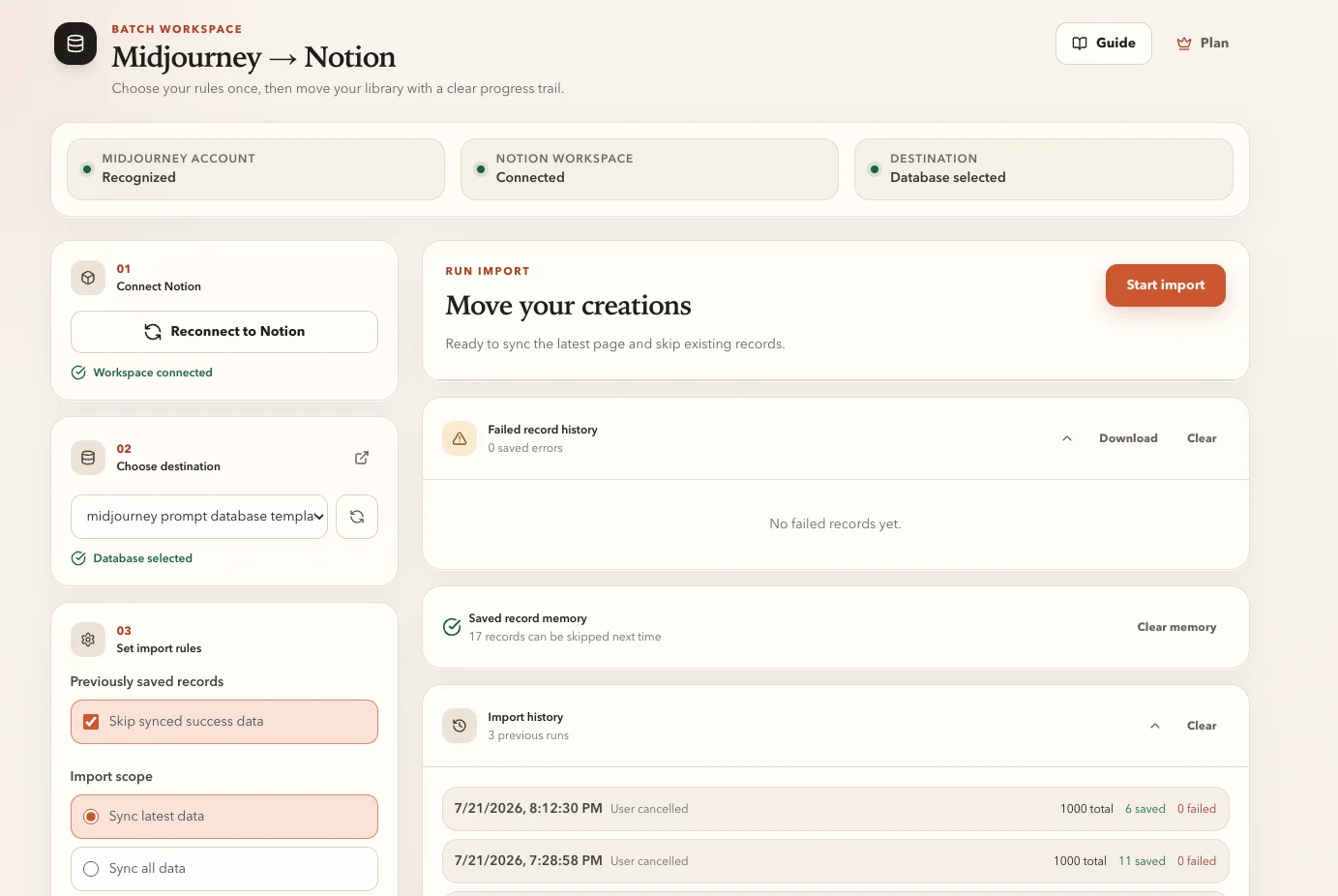
The options page lets you start a batch import and decide what to do when a matching item already exists. Choose the strategy that matches your archive:
- Skip: leave existing records unchanged and import only new work.
- Overwrite: update an existing matching record with the latest captured data.
- Insert: create a new database item even if a similar record already exists.
4. Let the extension check the database schema
Before importing, the extension checks whether the selected database contains the required properties. If a required property is missing, it attempts to add it automatically rather than failing halfway through the batch.
The required set is Prompt, Attributes, Version, URL, and Tags. See the database field reference for property types and troubleshooting.
5. Run the export and watch progress
Start the import once the database and ID checks pass. Keep the extension options page open while it works. The progress view should make it clear which items succeeded, were skipped, or need attention.
A second run can create confusing duplicate behavior. If progress appears stuck, check the visible error first, then retry only after the current task has stopped.
6. Verify the result in Notion
Open several imported pages—not only the database view. Confirm that the image renders and that the body follows the same structure used by single saves from Midjourney and Discord. Important text values are placed in Notion code blocks so prompts and URLs are easy to copy.
- Open an item from early in the batch and one from the end.
- Copy the prompt from its code block and confirm parameters are intact.
- Open the source URL and check that it points to the expected Midjourney job.
- Filter the database by version or tag to confirm properties are usable.
What to do next
Create Notion views for prompt research, final selections, style studies, or client work. The export gives you structured source material; Notion views and notes turn it into a working creative system.