
The five required properties
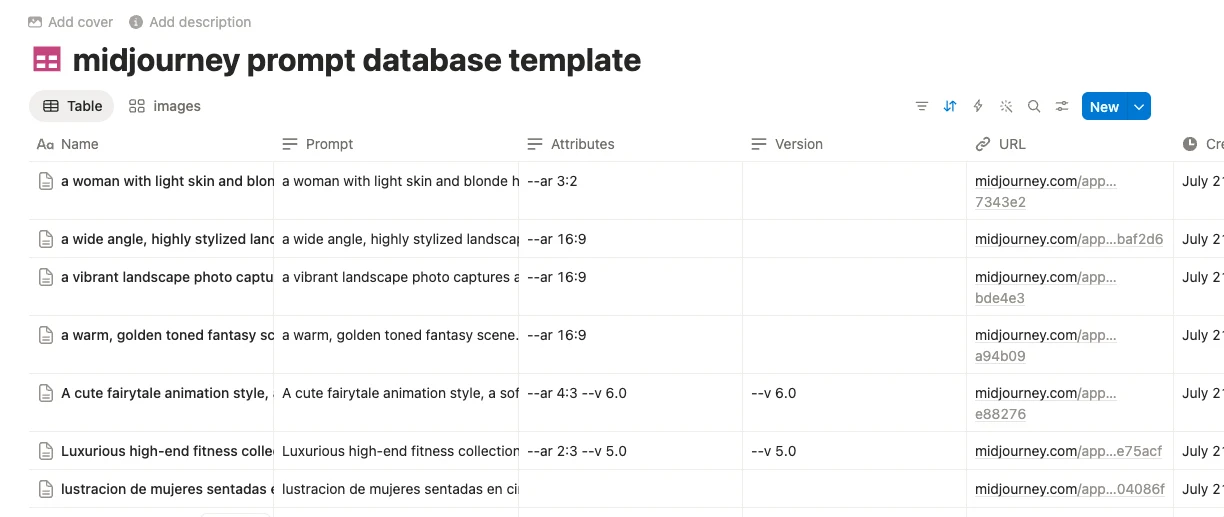
A consistent schema lets saves from the Midjourney jobs page, Discord, and batch import create comparable database items. The current required set is:
| Property | Purpose |
|---|---|
Prompt | The captured Midjourney prompt text. |
Attributes | Recognized parameters and generation attributes. |
Version | The Midjourney model version when available. |
URL | A source or job URL used to return to the original context. |
Tags | Labels that support filtering and archive views. |
How the automatic schema check works
Before each single save, the extension checks the currently selected database. For a batch import, it performs the check before processing the batch. If a required field is missing, the extension attempts to add it automatically.
This replaces the older manual “Add Version Field” option. Version is now part of the default required schema instead of an optional configuration.
The integration still needs permission to access and update the selected database. If Notion access was removed, the extension cannot repair the schema until the database is shared again.
Properties and page body serve different jobs
Database properties power sorting, filters, and views. The Notion page body keeps a readable record of the full captured content. All import paths now assemble that body consistently.
Prompt, Midjourney URL, original image URL, image URL, and recognized attributes are presented in copy-friendly Notion code blocks when available. The uploaded image follows the structured text.
Using an existing database
- Share the database with the extension’s Notion integration.
- Select it from the popup or options page.
- Run a single test save before a large batch.
- Confirm the required properties were found or created.
- Keep your own extra properties; the required set does not prevent custom fields.
If you rename a required field, the next schema check may treat it as missing and add the canonical name again. Keep the five required names stable and use separate custom properties for your personal workflow.
When automatic field creation fails
- Confirm the selected database still exists and has not been moved to an inaccessible workspace.
- Open Notion’s connections menu and share the database with the integration again.
- Reconnect Notion in the extension if the authorization is no longer valid.
- Reselect the database, then run one test save.
If the failure continues, report the property name and Notion error without including your token or private database content.
Useful views after import
Create a gallery for visual browsing, a table for prompt research, and filtered views by version or tag. The schema stays small on purpose: it provides reliable inputs while leaving room for ratings, clients, collections, status, or review notes.