Requirements
- Google Chrome or a compatible Chromium browser
- An active Midjourney account for your own history
- A Notion account and permission to edit the selected database
- Access to supported Midjourney Web or Discord pages for individual saves
1. Install the extension
- Open the Chrome Web Store listing.
- Select Add to Chrome and confirm the installation.
- Open Chrome’s extensions menu and pin Midjourney to Notion.
- The options page opens after a first installation.
2. Connect Notion
- Open the extension popup or options page.
- Select Connect Notion.
- Authorize the integration and choose the pages or workspace access requested by Notion.
- Return to the extension and select the destination database.
The popup and options page use the same selected database setting. Changing it in either surface updates the shared selection.
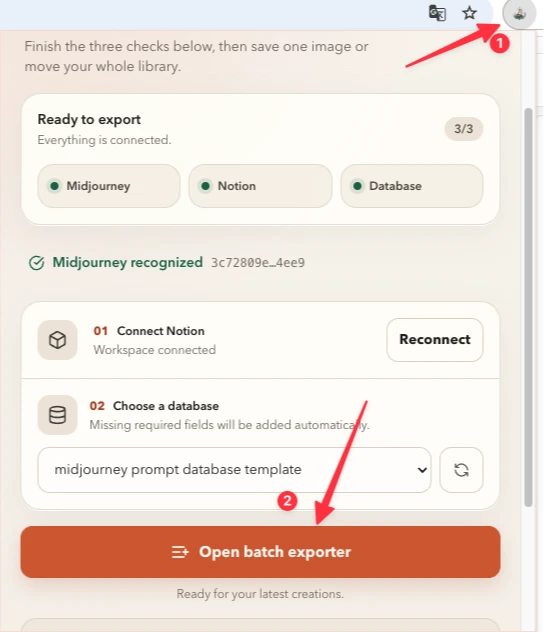
3. Let the extension identify your Midjourney account
Batch export needs your current Midjourney user ID. The extension detects it from supported Midjourney account pages and stores one canonical value in extension-local storage.
- Sign in at midjourney.com/imagine.
- Keep the page open until the extension popup shows that your Midjourney account has been identified.
- If it remains unavailable, refresh the Midjourney page, reopen the popup, and check the troubleshooting section.
The detected account value is used for authenticated Midjourney history requests. A stale or unrelated ID can cause a 403 response.
4. Save one creation
From Midjourney Web
- Open a supported
midjourney.com/jobs/*page. - Find Save to Notion beside the page action buttons.
- Select it once. A processing dialog appears immediately.
- Wait for the success or recovery message, then open the created Notion page if offered.
From Discord
- Open a supported
discord.com/channels/*page containing Midjourney content. - Use the injected Save to Notion action.
- The extension reads the supported prompt and image context, then uses the selected Notion database.
5. Export available history
- Open the extension popup and select Open batch exporter.
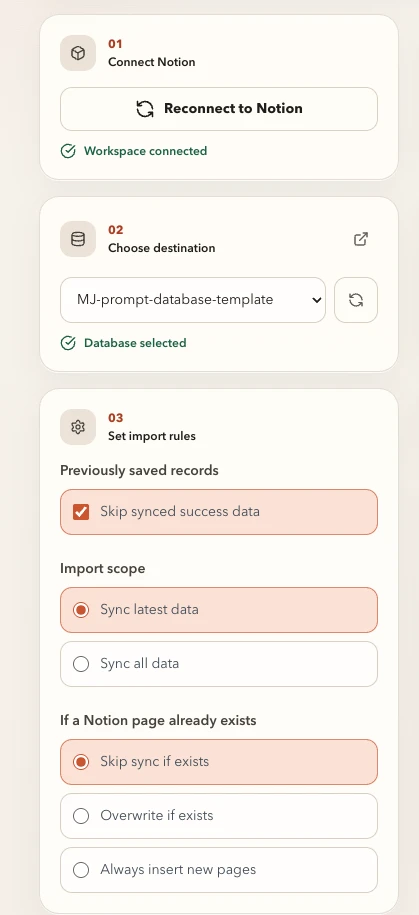
- Confirm the detected Midjourney user ID and selected Notion database.
- Choose the latest available page or all available history.
- Choose whether to skip locally synced records.
- Select the Notion duplicate strategy: Skip, Replace, or Always insert.
- Start the import and keep the tab open until it completes or you cancel it.
6. Database fields
Before importing, the extension verifies that the selected data source has a title field and the following supported properties:
Prompt      rich_text
Attributes  rich_text
Version     rich_text
URL         url
Tags        multi_select
Missing fields are added automatically. If a field already exists with a different type, the import stops with the field name and expected type rather than changing existing data unexpectedly.
Troubleshooting
Midjourney user ID is not detected
- Confirm you are signed in to the intended Midjourney account.
- Open
https://www.midjourney.com/imagineand refresh once. - Reopen the extension popup and wait for the identified status.
- Do not rely on an old
mj2notionUserIdsync value; the current extension uses the canonical localmidjourneyUserId.
Batch export returns 403
- Refresh the Midjourney account page so the canonical user ID is detected again.
- Confirm the signed-in account owns or can access the requested history.
- Retry after reopening the batch workspace.
Notion database is unavailable
- Reconnect Notion if authorization was revoked.
- Make sure the integration has access to the selected database.
- Select the database again from the popup or options page.
An image used the fallback
Notion native upload may fail because the source cannot be downloaded, the file is empty, the image exceeds the direct-upload limit, or Notion did not complete the upload. The extension then uses its R2 fallback so the record can still be saved.
Still stuck? Visit Support and include the page type, extension version, visible error, and whether the issue affects single save or batch export.