
Why the extension needs a user ID
Batch export needs to request the correct Midjourney history for the account currently signed in on midjourney.com. The extension detects that account ID from a supported jobs page and reuses it in the batch workflow.
If the stored ID belongs to another account, is malformed, or was read from an obsolete key, Midjourney can reject the request with a 403.
midjourneyUserIdThe older mj2notionUserId value should not be treated as the source of truth. Current popup and batch logic should use the same canonical ID.
Recognize the ready state
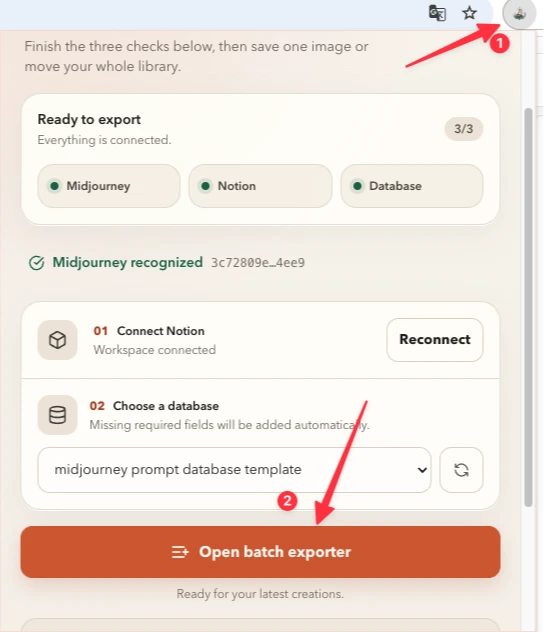
A ready state means a current ID is available for export. A missing state means the extension has not yet recognized an ID on a supported, signed-in page; it does not necessarily mean your Midjourney account is broken.
Refresh detection in the right order
- Open
https://www.midjourney.com/jobs/in the same Chrome profile where the extension is installed. - Confirm you are signed into the Midjourney account whose history you want to export.
- Open a specific job or jobs route and wait for the page content to finish loading.
- Refresh the page once so the newest content script runs.
- Open the extension popup and confirm it shows the ID-ready status.
- Return to the options page and start the batch only after that confirmation.
Check for multiple account contexts
Incognito windows, separate Chrome profiles, and switching Midjourney accounts can leave the page and extension looking at different sessions. Use one Chrome profile and sign out of unintended Midjourney sessions before refreshing detection.
If the popup recognizes an ID but batch export still returns 403, reload both the jobs page and extension options page. This forces both surfaces to read the current canonical storage value.
What not to do
- Do not manually copy an ID from a different Midjourney account.
- Do not rely on a stale
mj2notionUserIdvalue from an older build. - Do not start repeated batches while the first request is failing.
- Do not clear all Chrome data unless focused refresh steps have failed; that also removes unrelated site sessions.
If the 403 continues
Update the extension, refresh the jobs page, and repeat the detection sequence. If the problem remains, send support the extension version, the exact page type, the visible error message, and whether the popup reports an ID. Redact the actual user ID and any private image or prompt content.