Set up the destination once
Install the extension, connect Notion, and select a shared database in the popup or options page. Both surfaces use one canonical saved database selection, so changing it in one place should update the other.
Open Discord at a URL matching https://discord.com/channels/*. The extension runs only on supported pages and needs the page to be refreshed after a new installation or extension update.
Find the Save to Notion action
Locate the Midjourney image message you want to keep. The extension injects a Save to Notion action into the supported message controls.
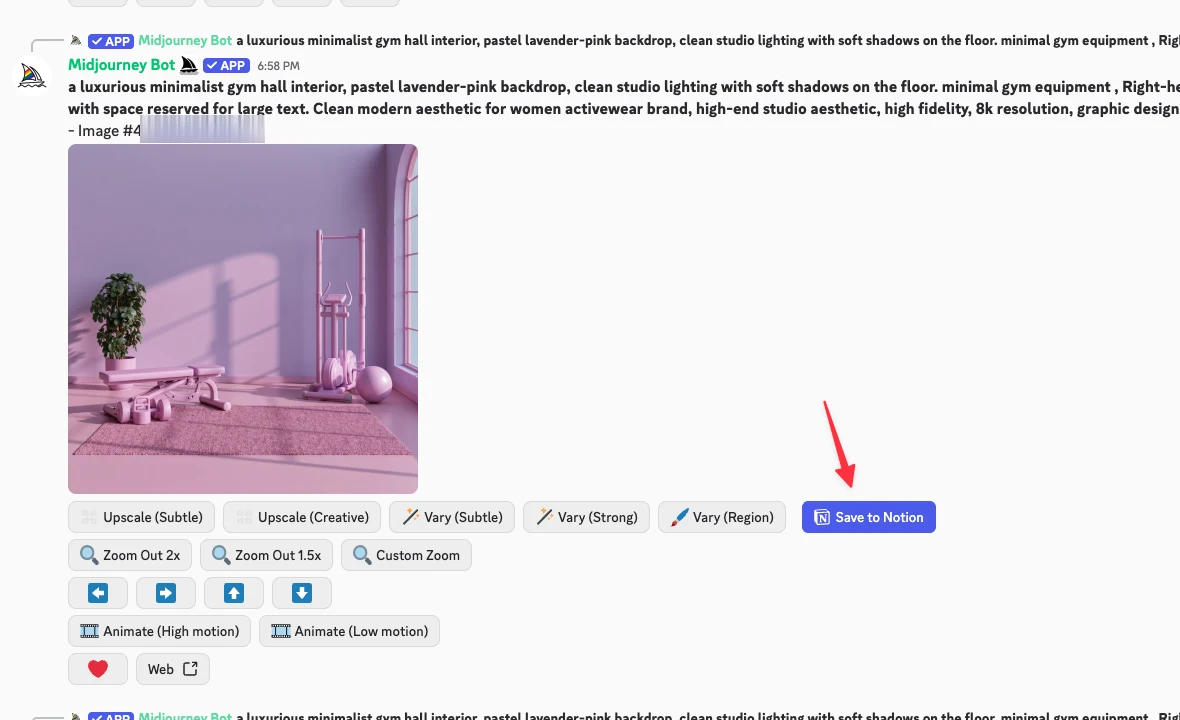
Click once and follow the progress layer
The processing layer appears immediately after the click, before the extension finishes reading the message. This instant acknowledgement is deliberate: it confirms that your action was received and helps prevent accidental double-clicks.
The layer then moves through capture and upload states. A successful save ends with a short confirmation. If the extension cannot parse the message, connect to Notion, or upload the image, it shows an actionable error instead of silently stopping.
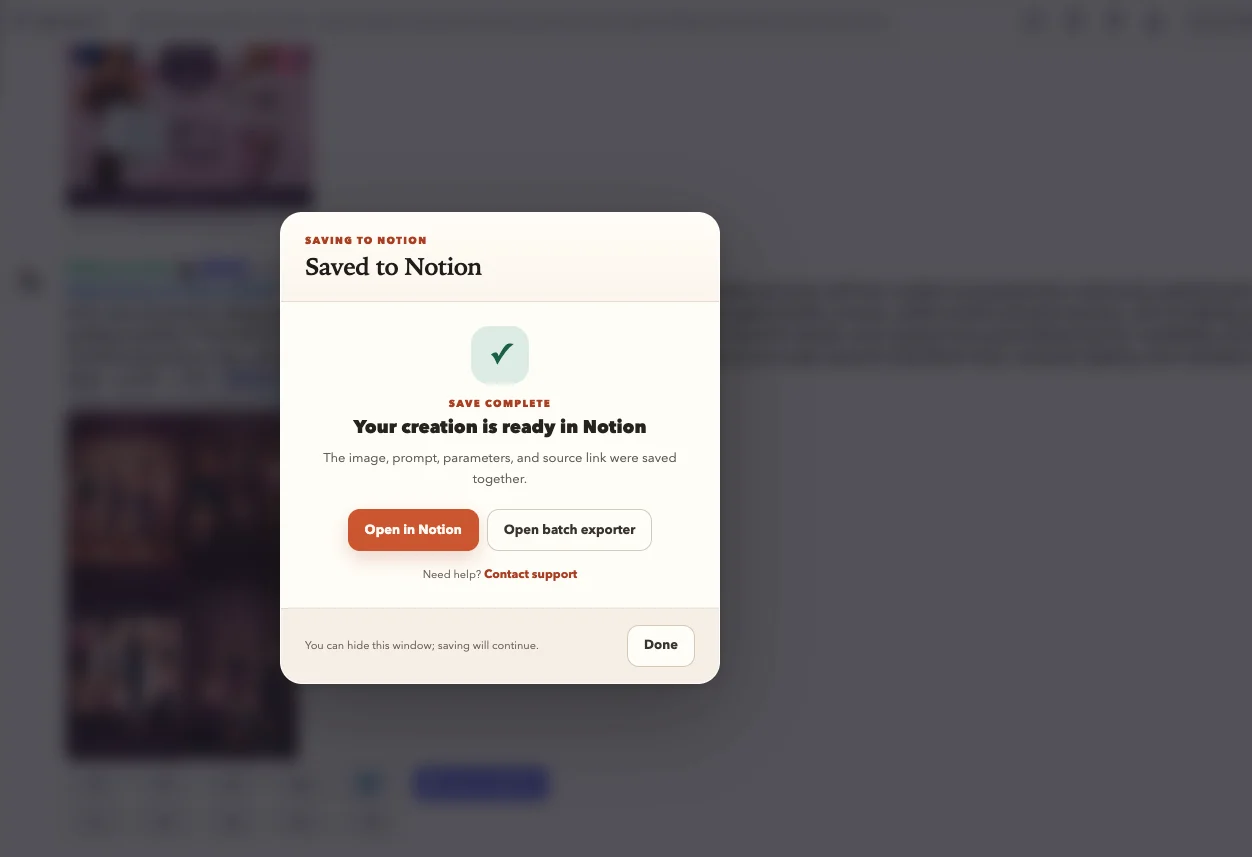
Wait for the current progress layer to finish. Repeated clicks can submit the same item more than once, especially if your selected duplicate strategy allows inserts.
What gets captured
- The prompt text and recognized Midjourney parameters.
- The source URL and image URL available from the Discord message.
- The image itself, uploaded through Notion’s native file upload API when supported.
- Structured Notion properties and a consistent page body with copy-friendly code blocks.
If native Notion image upload fails, the extension uses its current Cloudflare R2 upload path as a fallback and then embeds the resulting public image URL.
Verify the Notion page
Open the created Notion page and check the image, prompt, source links, and parameter block. The structure should match items saved from the Midjourney jobs page and items created through batch export.
- Confirm the image is the same Discord variation you selected.
- Copy the prompt from its code block and verify no parameters were dropped.
- Open the source link if you need to return to the original context.
If the button or image is missing
Refresh the Discord tab first. Then confirm the extension is enabled for Discord, the message contains a supported Midjourney result, and the destination database is still shared with the Notion integration.
If the page saves but the image does not appear, retry once after confirming the image is visible in Discord. Persistent failures should be reported with the page type, visible error text, and a redacted screenshot through support.